Add a product model
Choose the right source path, understand processing state, and know when a model is ready for a project.
Every Glossi project starts with a model. Choose an existing model, upload a 3D file, generate a starting model from photos, or browse the sample catalog.
Choose the source path
| Starting point | Best path | What to expect |
|---|---|---|
| A production-ready 3D file | Upload a 3D file | The most control over geometry, product parts, and materials |
| Product photos but no geometry | Generate from photos | A useful starting model that still needs visual and structural review |
| A model already in the workspace | Select from the library | The fastest path into a new project |
| You are learning Glossi | Browse sample models | A ready product for exploring the real Studio workflow |
Upload a 3D file
- Open Models in the asset library.
- Choose Add model.
- Select Upload a 3D file.
- Drop the file or browse to it.
- Keep the page open until the upload is accepted.
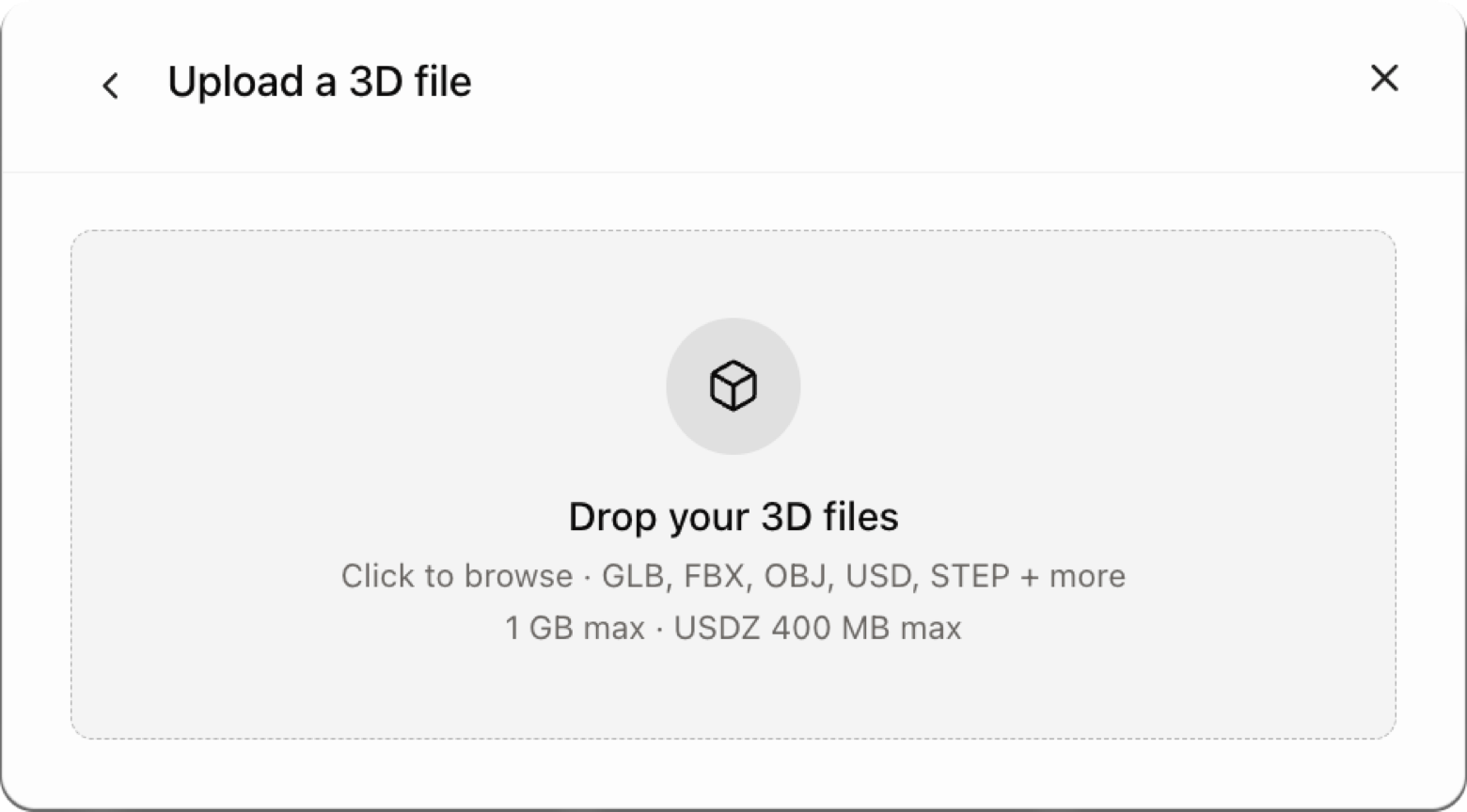
Glossi creates the model record, stores the source, converts it for the live engine, and generates a preview. Large or complex files can take longer to prepare.
Generate from photos
- Choose Add model.
- Select Generate from photos.
- Add clear views that cover the product from several angles.
- Start generation and wait for the model to return to the library.
Image-to-3D creates a starting representation. It does not guarantee production-ready geometry, exact dimensions, separated parts, or faithful materials. Review shape, proportions, surface detail, and product-critical features before building final work from it.
Use this path when speed to a starting point matters more than exact source geometry.
Browse sample models
Sample models help you learn Studio without waiting for conversion. They use the same project and rendering workflows as workspace models.
Choose Browse sample models from the add-model flow, then select the product that best matches what you want to learn. Creating a project from a selected sample should take you directly into that project because the model is already known.
Understand model state
| State | Meaning | Next action |
|---|---|---|
| Uploading | The source file is moving into Glossi | Keep the connection open and wait for confirmation |
| Processing | Glossi is converting the source and building preview state | You can leave the page and return later |
| Ready | The model can be selected for a project | Open it and verify the product before production |
| Failed | Upload, conversion, or preview generation did not complete | Open the error, correct the source if needed, then retry |
Do not treat a thumbnail as final readiness. Open the model and confirm the product itself.
Check the product before production
- The product silhouette and proportions match the source.
- Important parts are present and selectable where needed.
- Materials appear on the correct product regions.
- Modeled options or poses switch correctly.
- Scale, orientation, and floor contact are usable in a scene.
- The preview represents the current converted version.
If the source is difficult to prepare, use Talk to our 3D team from the add-model flow. Include the product, source link, dimensions, materials, deadline, and any reference images that clarify what must match.
Next step
Create your first project, or read the deeper product preparation guide.