Quickstart
Make one product image in the real Glossi workflow, from model selection to a downloaded render.
This guide takes one product from a 3D model to a finished image. You will choose the source, direct one visible change in Studio, render the exact angle, and download the result.
Before you start
Choose the source path that matches your situation:
- You have a prepared model in Glossi: continue to the next section.
- You have a 3D file: upload it first.
- You only have product photos: generate a starting model, then review the result before production.
- You want to learn before using your product: choose a sample project. It opens the same Studio and teaches the same workflow.
Your first result should be a controlled product image, not a tour of every feature.
1. Create a project
- Open Projects.
- Choose New project.
- Select the model you want to use. Choose Add a model if it is not in the library yet.
- Create the project.
Glossi creates the real project immediately. If the model is still being prepared, the project keeps that state instead of asking you to repeat the setup later.
Successful exit: the project exists and opens in Studio with the intended model selected.
2. Let Studio connect
Studio runs in a managed Unreal Engine session and streams the live viewport to your browser. Connection time depends on available capacity and network conditions.
Keep the tab open while the session starts. If the connection stalls or drops, use the recovery action shown in the interface before creating another project.
Troubleshoot Studio connection
3. Direct one visible change
Start with a decision you can judge immediately.
Change a finish
- Select the product or the material region you want to change.
- Open its material controls.
- Apply a material from the library or adjust a supported property.
- Wait for the live product to reflect the change.
Refine the light
- Select a light from the scene.
- Adjust its intensity, size, position, or target.
- Judge the highlight and shadow on the product, not the numeric value alone.
The goal is simple: prove that you can state an intention and see the product respond.
Edit the product and shape the lighting
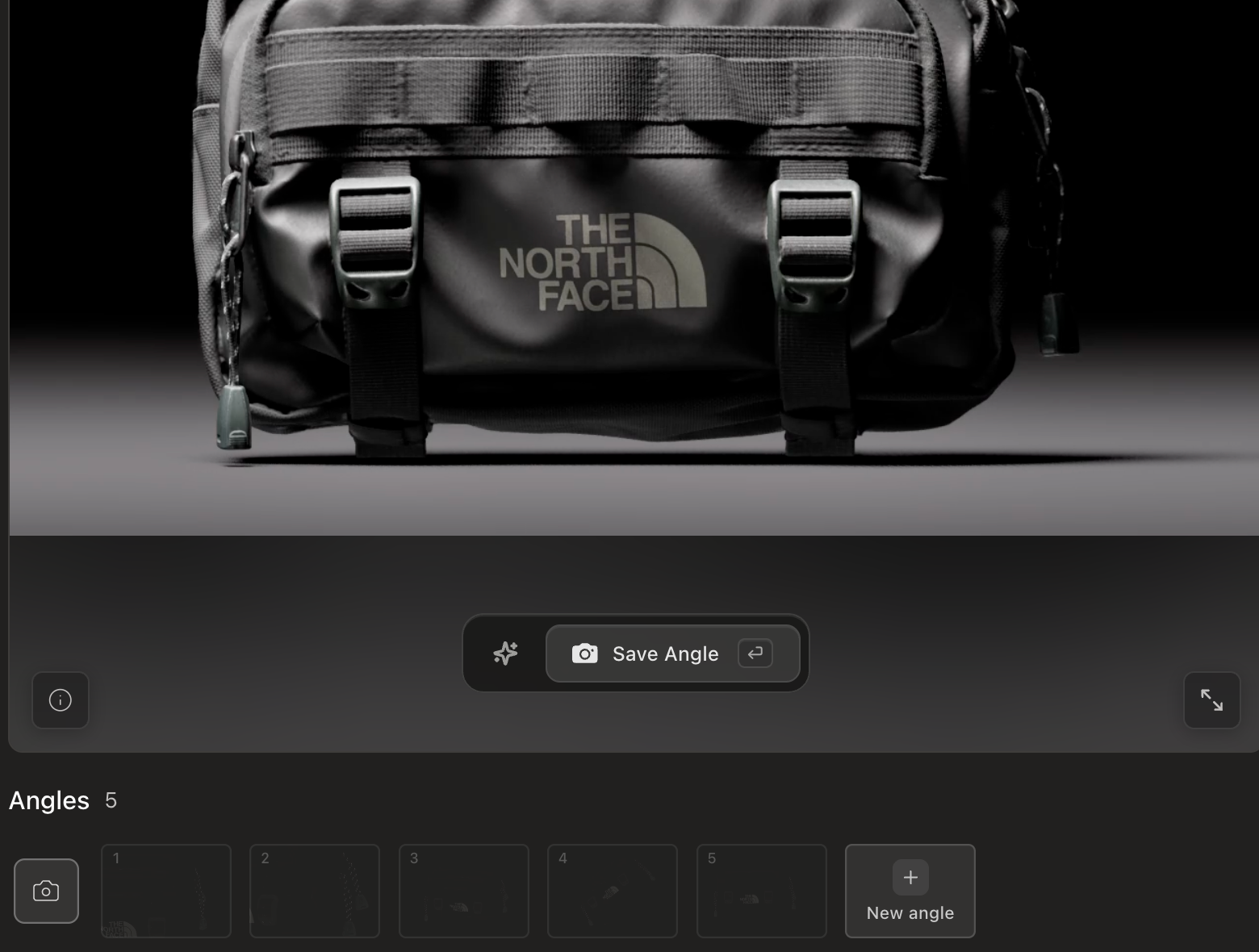
4. Frame the image
- Open Photo mode.
- Select an existing angle or create a new one.
- Adjust the camera until the composition is ready.
- Save the angle.
An angle stores the view you intend to render. Save it before opening export so the output remains tied to a clear camera state.
5. Render the selected angle
- Open the photo export panel.
- Choose the selected angle.
- Confirm aspect ratio, resolution, and supported background settings.
- Start the render.
The render continues as tracked work after the request leaves Studio. You can inspect progress from the project or render library.
Successful exit: the render reaches a finished state and appears in the render library.
6. Review and download
Open the finished render at full size. Check product shape, materials, framing, edges, and any transparent regions before using it.
Download the approved file from the render page. A completed render proves Glossi can produce the output. A completed download proves the work reached you.
Make the work reusable
Once the project produces an approved result, save it as a template. Then apply that template to another prepared model with Quick Render.
That second result is where the setup becomes production leverage instead of a one-off scene.
What you can do with Glossi
A complete guide to preparing products, directing scenes, reusing approved setups, producing outputs, adapting renders, automating work, and delivering results.
How Glossi works
Understand the product model behind a Glossi workflow, from a prepared 3D model to a reusable template, tracked render, and delivered output.