Props
Scene objects your workspace places around a product: add from the catalog or upload, find, open, and delete props.
The Props page holds the furniture, plants, décor, and other objects you place around a product in Studio. Open Library → Props, or go to /library/props. To place a prop in a scene, see Props in Studio.
Add props
From the catalog
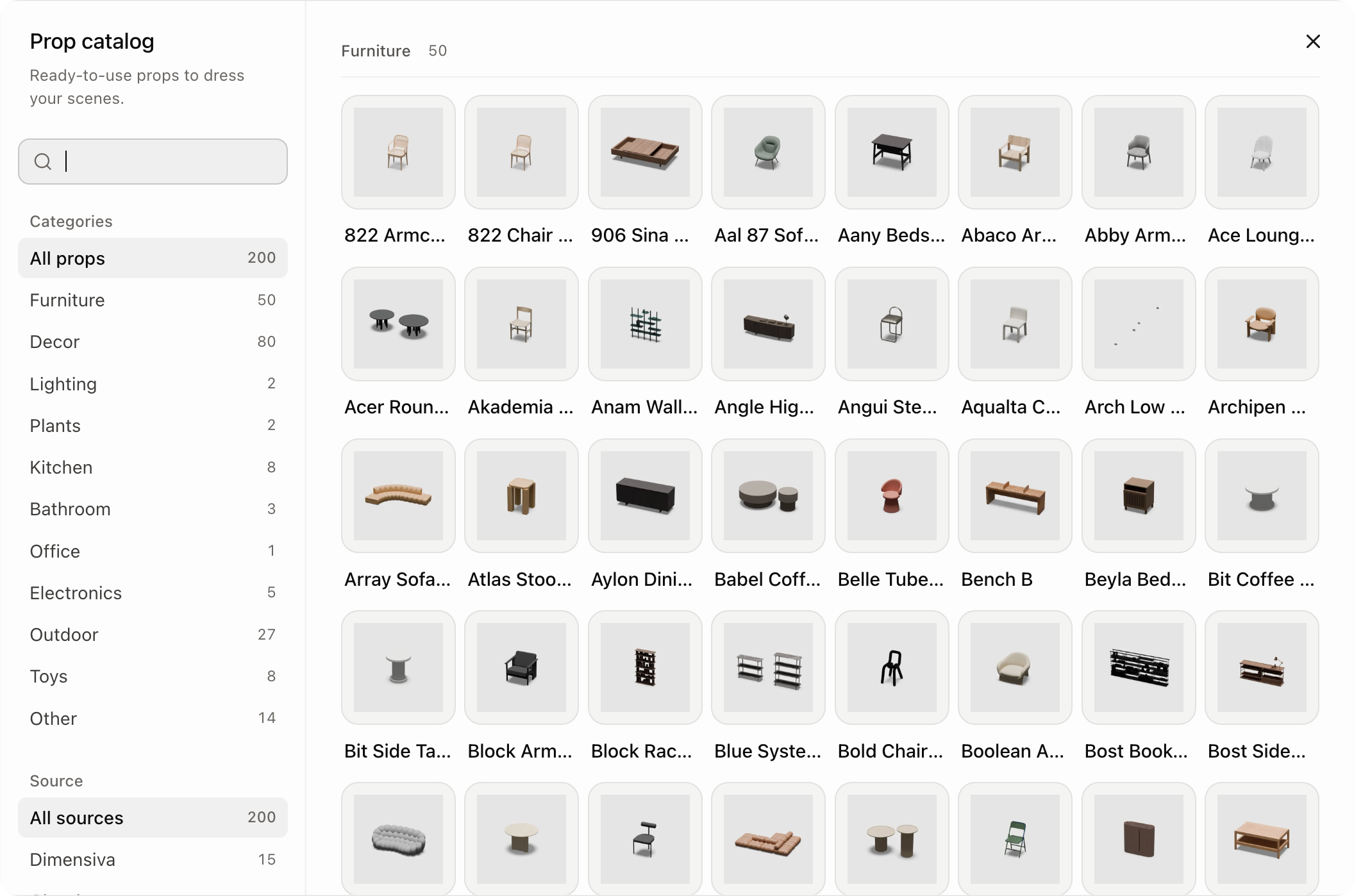
Select Browse catalog. Search by name or filter by category and source, then add a prop to your workspace. Catalog props are ready to use straight away.
Upload your own
Select Add prop and choose files, or drop 3D files anywhere on the page. Glossi accepts GLB, GLTF, FBX, OBJ, USD (USD, USDA, USDC, USDZ), STL, PLY, DAE, ABC, and ZIP, up to 1 GB per file.
Glossi converts each file the same way it converts models: it normalizes the geometry, scale, and orientation, optimizes the textures, and makes a preview. The card shows a progress bar until the prop is ready. You can close the upload window; uploads carry on in the background.
Find props
| Control | What it does |
|---|---|
| Search | Matches prop names. |
| All / Favorites | Shows every prop or only the ones you starred. |
| Filter | Narrows by Category. |
| Sort | Newest or Oldest. |
Props have no folders. Right-click a card to Favorite or Delete... it. Select several to delete them together.
Open a prop
Selecting a card opens a panel over the grid with a large preview, the prop's status, the date it was added, its property values, and its asset ID.
Delete a prop
Deleting a prop is permanent and removes it from the workspace library.