Templates
Saved Studio setups from Glossi and your workspace: find, open, and manage templates.
The Templates page lists the Studio setups you can reuse: scene, lighting, saved shots, and clips captured from a project. Open Library → Templates, or go to /library/templates. For what a template carries and how to create, update, and apply one, see Templates.
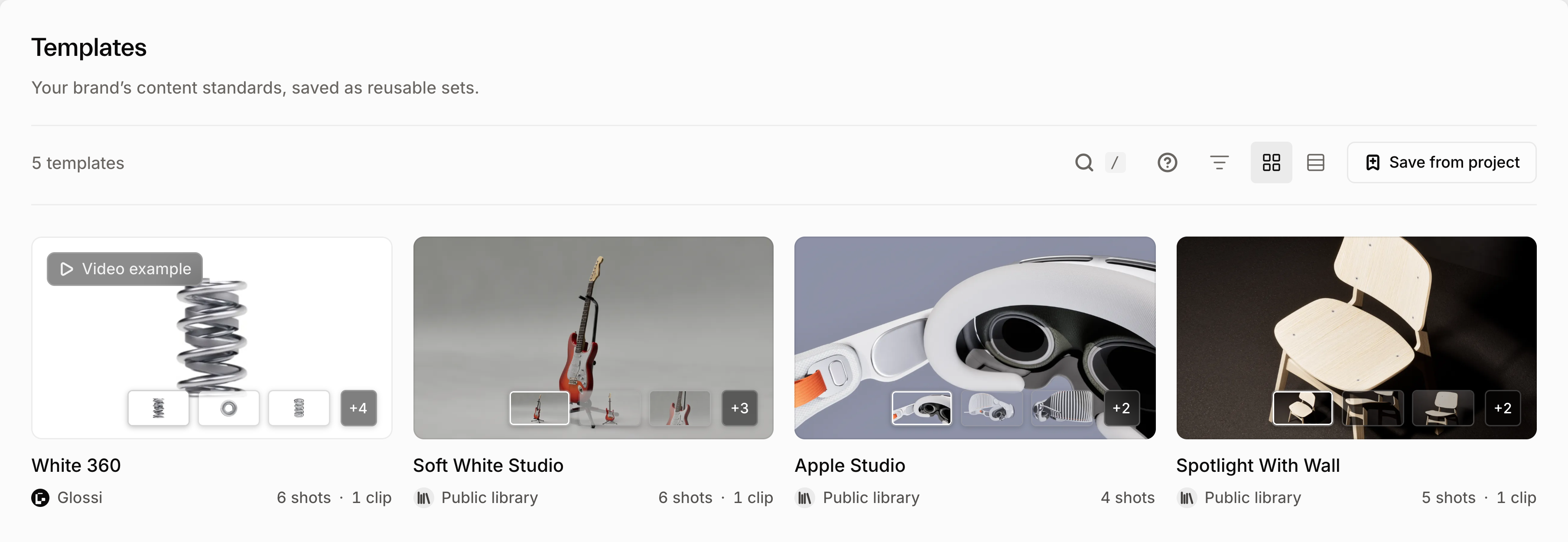
Find templates
| Control | What it does |
|---|---|
| Search | Matches template names. |
| All templates / Glossi / Workspace | Shows every template, the ones Glossi publishes for every workspace, or your workspace's own. |
| Grid / List view | List view lets you sort by column. |
Without a search, templates Glossi features appear first under Featured, followed by More templates.
To create a template, select Save from project, pick the source project, then name and save it. Glossi captures the last scene saved in Studio. If that project already has a template, choose View template to open it.
Open a template
Selecting a card opens the template's page at /library/templates/<id>:
- Example renders made with the template.
- Included outputs: the saved shots and clips. Saved AI edits appear under their shot, with their instructions and settings.
- Studio setup, the template's versions, and its review state: Not reviewed, In review, Approved, or Changes requested.
- Organization: tags and properties.
- Template updates: whether changes from projects can be saved back. Workspace admins can Lock template so only admins can save setup changes.
The header actions:
| Action | What it does |
|---|---|
| Create with template | Opens Render products with this template, to apply it to your models. |
| Customize in Studio | Creates a project from the template so you can change it. Shown on templates you do not own. |
| Manage template | Shown on your workspace's own templates. |
| ··· menu | Automate with template (see Automations, available on Enterprise), Copy template ID, and, on your own templates, Delete template. |
When you improve the source project, use Update template in Studio to save a new version.
Delete a template
Choose Delete template from the ··· menu of a template your workspace owns. Deleting is permanent. Glossi refuses while any project or automation still uses the template; delete those projects or change those automations first.