Models
Every 3D product in your workspace: find, organize, open, share, and delete models.
The Models page holds every 3D product in your workspace. You pick from it when you create a project or render products. Open Library → Models, or go to /library/models.
Add a model
Select Add model in the toolbar, or drop 3D files anywhere on the page to start uploading them straight away. The arrow beside Add model offers the other ways in:
| Option | What it does |
|---|---|
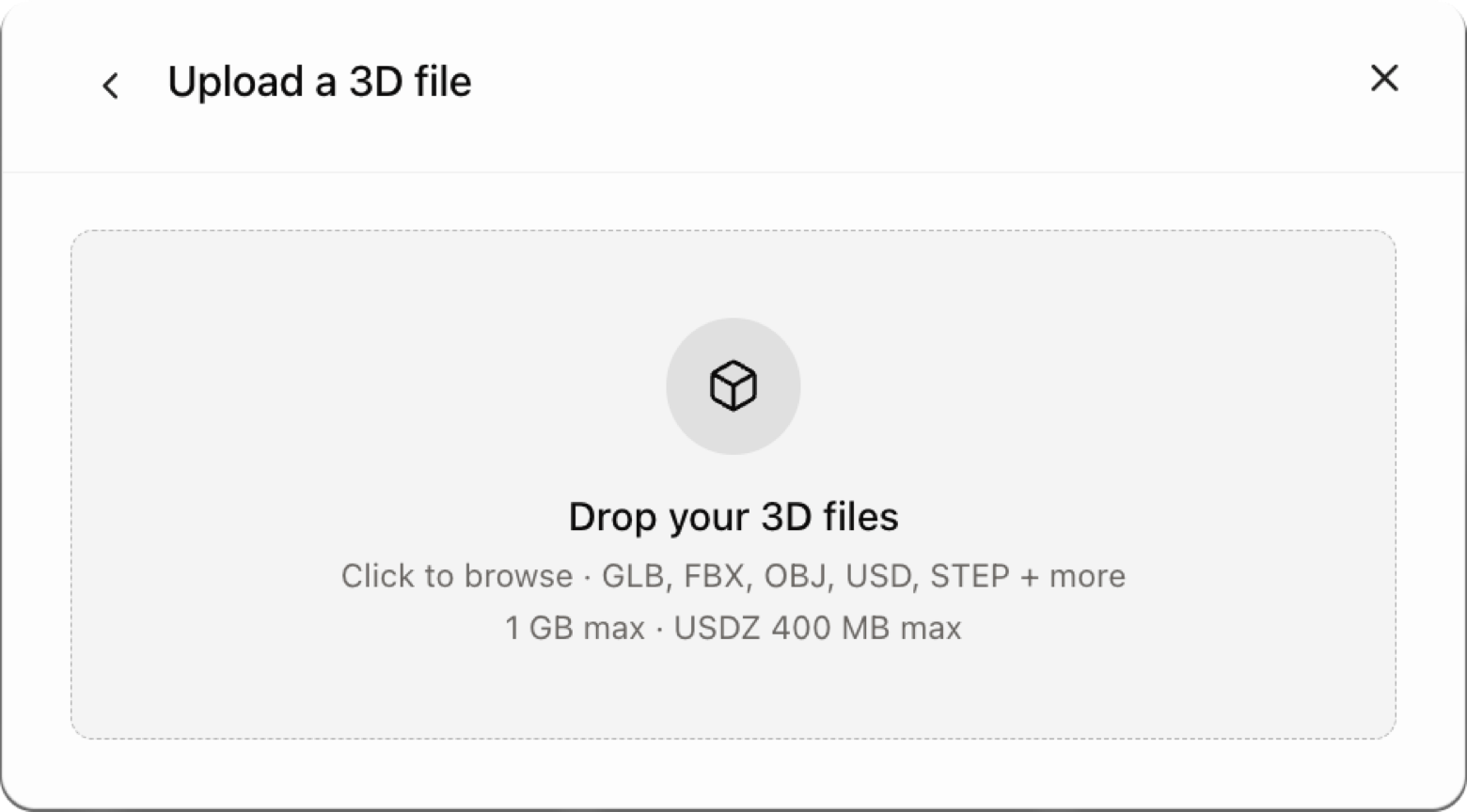
| Upload a 3D file | Upload prepared geometry. See Upload a model. |
| Generate from photos or technical drawings | Glossi builds a starting model you review. See Get a 3D model. |
| Request a hand-built model | Ask for an expert build. See Get a 3D model. |
| Browse sample models | Add a ready product to learn the workflow. |
A card shows a placeholder until processing finishes, then the model's preview, name, status, and the values of up to two card-visible properties.
Find models
| Control | What it does |
|---|---|
| Search | Matches names, tags, and property values as you type, so "navy" finds a model whose Colour property is Navy. |
| Filter | Narrows by each select property your workspace defines, Tags, Status, Visibility (shared models show as Public), and Favorites. Each value shows how many models match. |
| Sort | Newest or Oldest in grid view. List view adds name, most used, and recently updated. |
| Grid / list toggle | Switches between cards and a table. |
Active filters show as chips under the toolbar. Remove a chip to drop that value, or select Clear to start over. Search, filters, and sort live in the page URL, so you can share a filtered view or refresh without losing it.
Saved views
With filters active, select Save view in the chip row, name it, and choose whether to Share with workspace. Pinned views appear under Models in the Library rail, with their sort saved too. The Views row at the end of the list lets you rename, pin or unpin, share or make personal, and delete views. You can delete your own views; admins can also delete shared ones.
Organize models
Folders, moving, and selecting work the same across the Library. See Find and organize.
Right-click a card for Open, Render products, Open in Studio, Favorite, Move to…, and Delete. Hovering a card shows its checkbox and Open in Studio.
With several models selected, the selection bar offers:
- Render products: render the selection with a template. See Render products.
- Replace materials: swap materials across the selection, where material swaps are turned on. See Materials across models.
- Add tags
- Set property: give every selected model the same property value.
- Move to
- Delete
Open a model
Selecting a card opens the model's page at /library/models/<id>. It shows the 3D preview with tabs for the model's variants, Projects, and Renders, and a details panel with the file details, versions, tags, and properties. Rename the model by editing its name in the header, and use the star beside it to favorite it.
The header holds:
- Comments: pin comments to the model in 3D.
- Share model: the public link (below).
- Open in Studio: create a project with this model and open it.
- The ··· menu: Render with template, downloads (Download GLB, or Download original GLB for a GLB upload, Download USDZ where one exists, and the original file in its own format), Get help with this model, and Delete model.
To replace the file, upload a new version from the versions section instead of deleting the model. Projects, materials, and variants stay in place. See Model versions.
Share by link
Open Share model and turn on Share by link. Glossi creates a public link and a QR code. Anyone with the link can view the model in 3D and download the GLB and USDZ, without a Glossi account. The panel shows how many times the link was viewed.
- Turn the switch off and the link stops working at once. Turn it on again and the same link works again.
- Replace link issues a new link; the old one stops working.
- Embed gives an HTML snippet that shows the 3D viewer on your own site. It follows the same rules as the link and its views count toward the same total.
Delete a model
Delete from the card's right-click menu, the selection bar, or Delete model on the model page. Deleting is permanent. If a model is used in projects, the dialog says how many and deleting the model deletes those projects too.