AI Styles
Reusable reference image sets that guide AI edits of your renders: create, open, test, and delete styles.
The AI Styles page holds your workspace's styles. A style is a set of reference images plus written direction that guides an AI edit of a render. Open Library → AI Styles, or go to /library/styles. For how to build a good reference set and apply a style to renders or automations, see AI Styles.
Find styles
Search matches style names. Each card shows up to three of the style's selected references and how many references it holds, or Processing references… while Glossi prepares them. About AI Styles in the toolbar shows a short introduction.
Create a style
- Select New style.
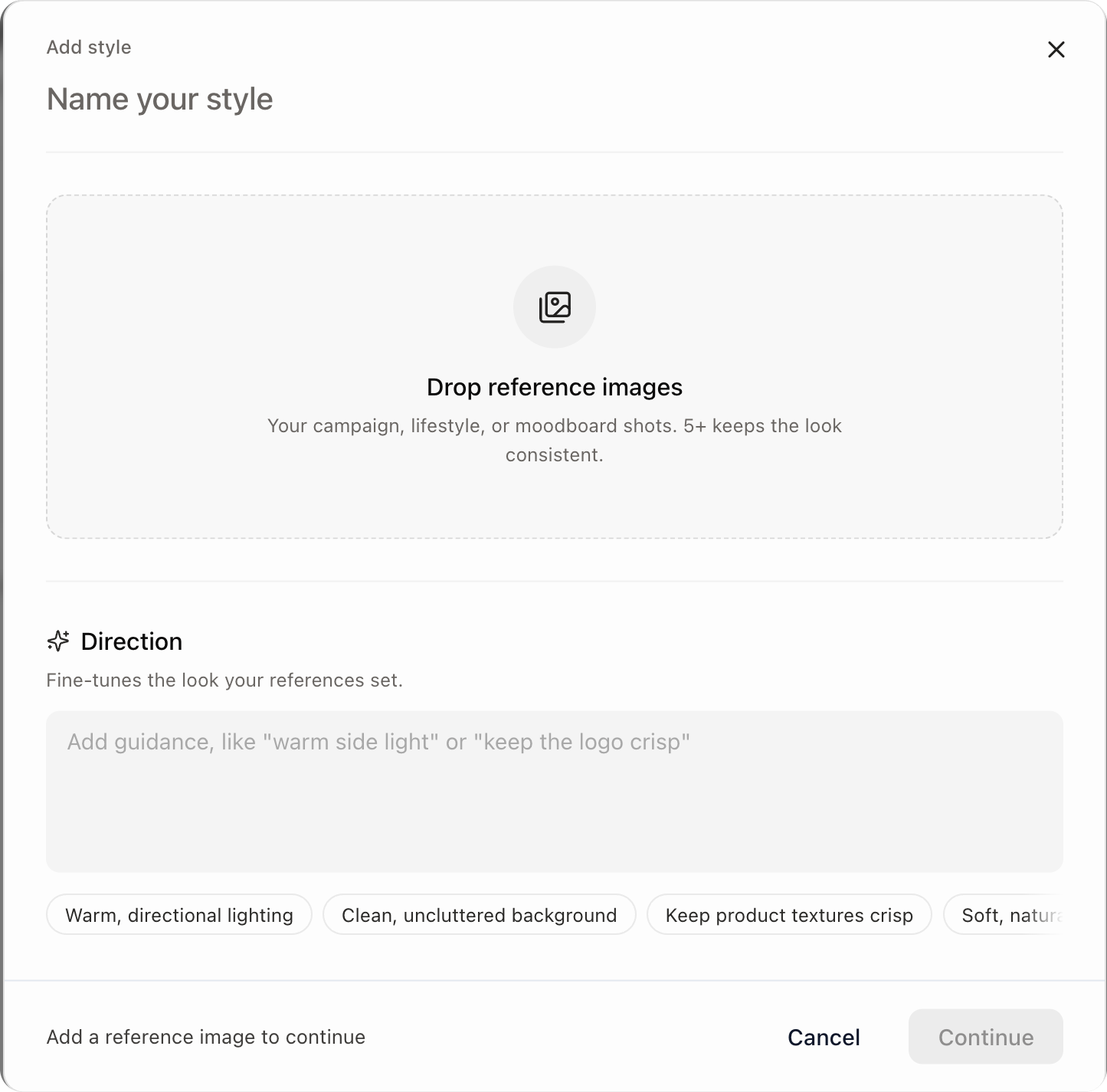
- Name the style and add campaign, lifestyle, or moodboard images.
- Select between 1 and 10 images to guide the style. The first 10 you add are selected for you, and the library can hold more.
- Optionally write Direction for what the images cannot show precisely, such as warm side light or keeping a logo crisp.
- Select Create style.
Open a style
Selecting a card opens the style's page at /library/styles/<id>.
References. Add images, open one for a closer look, and use the checkboxes to choose up to 10 that guide the style. Show selected reviews that set together. Deselecting keeps an image in the library; remove it to drop it. Direction can point at selected images with @1, @2, and so on, matching the numbers under their previews. Remove a mention before you deselect the image it names. Select Save changes to keep your edits; only changes to the selected references restart processing.
Test the style. Choose an image render with Select render, or search with Browse all renders. Change the direction and select Generate preview to try it without changing the saved style. Compare Original and Preview. A preview goes out of date when you change its settings. Select Save preview to render to keep a result, then View render to keep working on it. Unsaved previews are temporary.
Results. Shows the latest kept result for each render that used this style. Results keep their look when you change the style later. Select one to open that saved result on its render.
Use style on a render picks a render and opens AI Edit with this style selected, without starting a generation.
The page's menu has Rename style and Delete style….
Delete a style
Choose Delete style… from the style page's menu. Deleting permanently removes the style's references, direction, and saved preview. Renders and styled results made with it stay as they are. Automations that use the style skip it on future runs.