Direct a scene in Studio
Learn the working areas of Glossi's streamed Unreal Studio and move from product setup to a saved view.
Glossi Studio is the live 3D workspace where product models become directed scenes, saved image angles, video clips, and finished renders. It controls an Unreal Engine session running on cloud GPU infrastructure and streams the interactive viewport to your browser.
Your first goal is simple: make one visible product or lighting decision, save one useful view, and render it.
Studio Layout
The studio is organized into five main regions:
- Toolbar (top) - Project navigation, mode switching, and export controls
- Left Sidebar - Scene settings (backdrop, lights) and model management (variants, materials)
- Viewport (center) - The live working preview of the scene. Final output can differ with render resolution, format, transparency, and production settings.
- Right Sidebar - Context-sensitive property editor for the selected element
- Bottom Panel - Photo angles or video clips, depending on the active mode
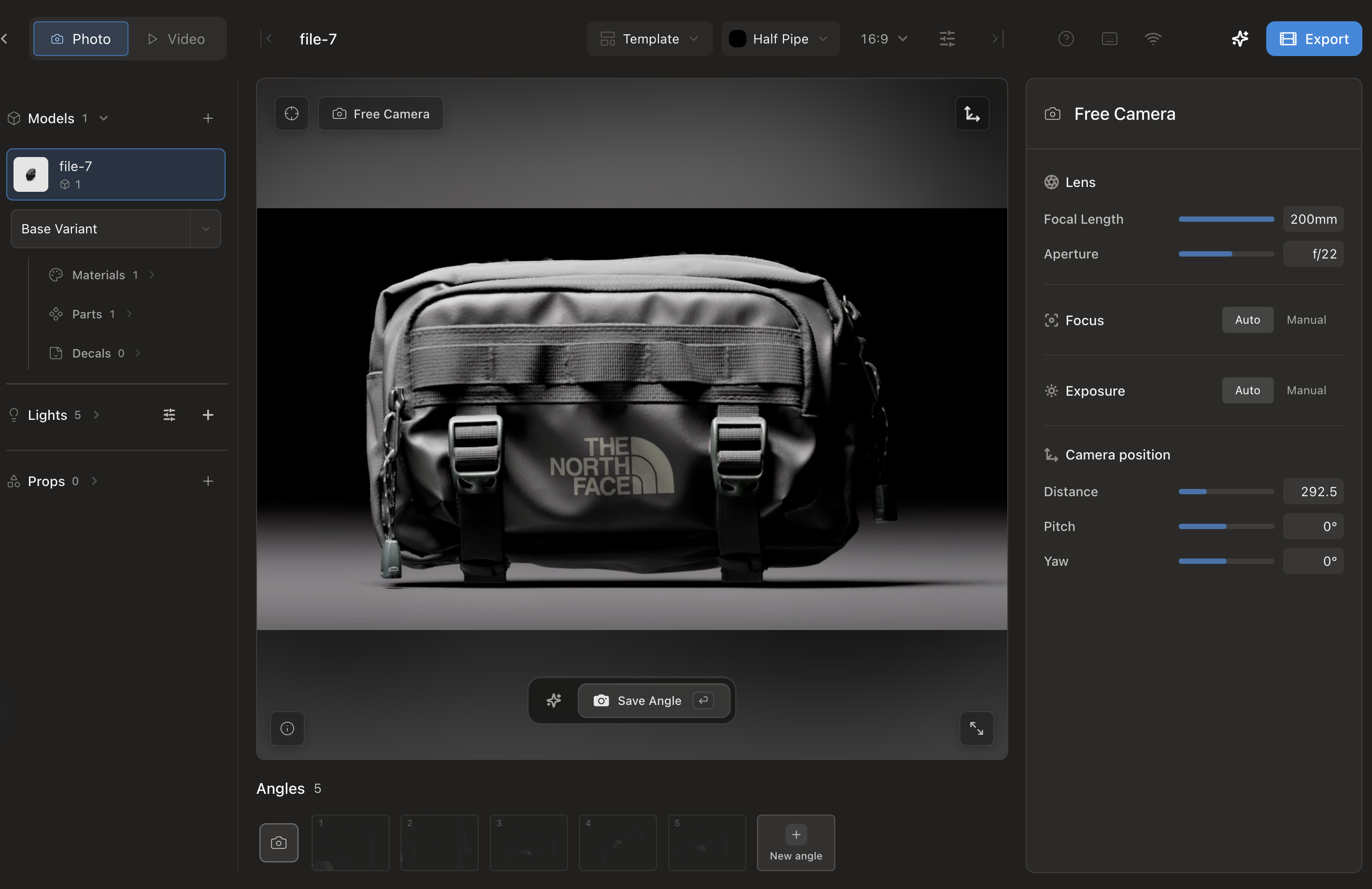
Navigating the Viewport
The viewport is your working area for adjusting the camera and composing your scene. Use your mouse to navigate:
- Pan - Right-click and drag to move around the scene. The camera moves laterally relative to your view.
- Rotate - Left-click and drag to orbit around the model. The camera rotates with the center of the scene as the anchor point.
- Zoom - Scroll to zoom in and out.
Tip If you've lost your place in the scene, click on an angle or clip in the bottom panel to return to a saved camera position.
The Toolbar
The top toolbar is organized into several groups:
- Navigation - Return to your projects or view the current project name.
- Mode toggle - Switch between Photo and Video modes. These modes change the options available in the bottom panel and right sidebar.
- Camera controls - Access post-processing settings and camera configuration.
- Panel visibility - Toggle the left sidebar, bottom panel, and right sidebar on or off to maximize viewport space.
- Export - Open the export panel to configure render settings and start rendering.
- Connection status - See the health of your studio connection.
The Left Sidebar
The left sidebar has two tabs:
Scene
Manage the environment around your model:
- Backdrop - Select and customize your background, including style and colors.
- Lights - Browse and switch light presets, or select individual lights to adjust their properties.
Models
Manage the models in your scene:
- Variants - Switch between model variants, add new ones, or rename existing variants.
- Materials - View and select material groups and individual materials for editing in the right sidebar.
Assistant
The Assistant lives at the bottom of the left sidebar: describe a scene change, an AI image or video edit, or a question in plain language and it decides how to do it. Collapsed, it is a single row; click it to expand the conversation, and drag the divider above it to give it more or less of the sidebar.
The Right Sidebar
The right sidebar is a context-sensitive property editor. It displays different controls depending on what you have selected:
- No selection - Shows free camera controls (exposure, ISO, shutter speed in Photo mode).
- Angle selected - Shows camera position, zoom, and focus settings for that angle.
- Video clip selected - Shows clip type and camera movement properties.
- Light selected - Shows intensity, position, color, and temperature controls.
- Material selected - Shows material properties for editing.
- Backdrop selected - Shows backdrop color, floor material, and visibility settings.
The Bottom Panel
The bottom panel manages the clips or angles associated with your project. Its contents change based on the active mode:
Photo Mode
Displays your saved camera positions, called angles. Each angle captures a specific camera position and settings. You can:
- Add new angles
- Select an angle to preview it in the viewport
- Delete angles you no longer need
Video Mode
Displays your video clips in chronological order, with the duration of each clip indicated. You can:
- Add new clips
- Rearrange clips by dragging them into order
- Select a clip to preview and edit its camera movement
- Play or pause camera movements
- Delete clips
Aspect Ratios
The primary Studio controls expose three common aspect ratios:
- 16:9 - Landscape, standard for web and video
- 1:1 - Square, common for social media
- 9:16 - Portrait, ideal for mobile and vertical video
Changing aspect ratio changes the frame. Review the composition for each output rather than assuming one camera position works equally well everywhere.
Complete the first useful loop
- Select the product material or light you want to change.
- Make one deliberate adjustment and inspect it in the viewport.
- Frame a useful image angle.
- Save and name the angle.
- Render that view.
- Review the finished output in Renders.