Create and manage projects
Choose the product models for a scene, enter Studio, and preserve the work behind every output.
A project is the editable source of a product-content set. It holds the models and Studio decisions behind the images or video you produce: scene, materials, lights, backdrop, props, cameras, saved angles, and clips.
Create a project
- Open Projects.
- Select Create Project.
- Choose one or more ready models.
- Upload another model from the selection grid if the product is missing.
- Create the project.
Model selection is the only required creative decision in the primary flow. Glossi uses the available starting scene so you can enter Studio and direct the result. If you already know which approved setup should be used, choose a template through the secondary template option.
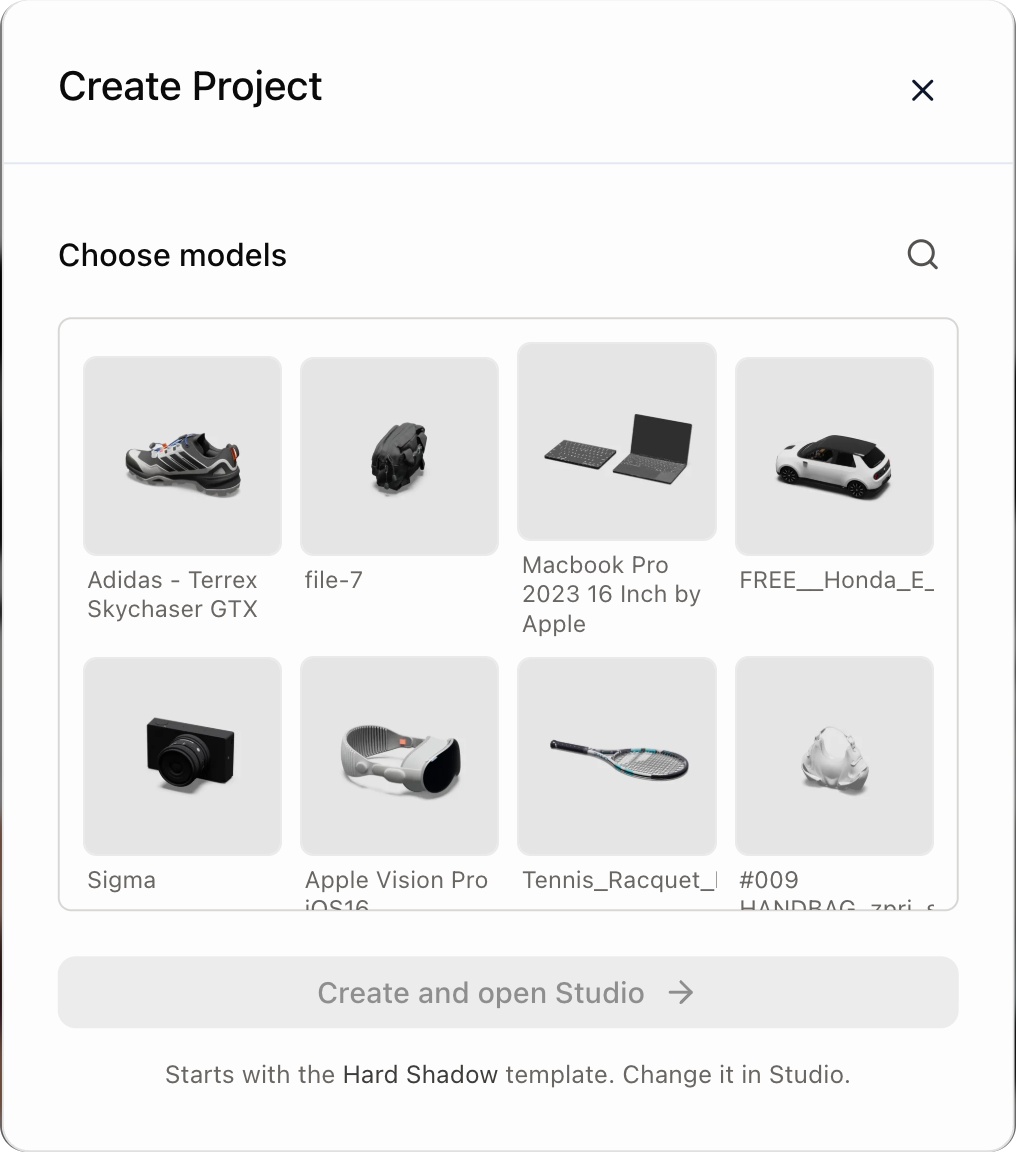
When your workspace has no ready model, the same modal changes into the first-model flow. Upload a 3D file, generate a starting model from photos, or choose a sample. Once a model is available, project creation returns to selection.
Start from a model or template
You can also create a project from a model detail view or template card.
- From a model, the product is already selected. Create the project and continue into the scene.
- From a template, the setup is already selected. Choose the product model that should enter it.
The modal should not ask you to repeat a choice the source card already answered.
Open Studio
Open a project to request a streamed Studio session. Glossi provisions the session, pairs the project, and opens the interactive workspace when it is ready.
If the session takes longer than expected, keep the project page available and check Connecting to Studio before creating a duplicate project.
Manage project work
From the projects page you can:
- search and sort projects
- filter by supported model, template, or content state
- reopen the project in Studio
- inspect project details and associated assets
- delete work you no longer need
- include batch projects where the workspace exposes that filter
Project names should identify the product and purpose, such as Samba Sneaker / PDP Core Views. A name that survives outside today’s context makes the render library easier to navigate later.
Inspect project assets
Select a model or template under Project assets to open its full detail page. The breadcrumb keeps the route back to the project: Projects → project name → asset name. Select the project name to return. The same path remains available after refreshing or opening the asset link in a new tab.
Assets opened from the Library keep their Library breadcrumb. If the originating project is no longer available to you, the asset page falls back to its Library path.
Create several related projects
Choose several models in the Create Project flow when each product should receive its own project. For a repeatable approved setup, use the same template across those projects or move the work to Quick Render.
Batch Projects provide a grouped production view where enabled. They are useful for tracking several related project jobs, but the underlying projects and outputs remain inspectable.
Know when the project is ready
A project becomes valuable when it contains at least one view that another person can accept. Before saving the setup for reuse, confirm:
- the intended product and option are active
- material assignments match the product
- scale and contact with the scene look correct
- lighting describes the form cleanly
- framing works at the intended aspect ratio
- saved image angles or clips are named clearly